Free Resource
Use AI to Build TradingView Indicators (The Way I Actually Do It)

AI in trading is everywhere now. And no, it’s not because the market suddenly became “easy.” It’s because humans are walking emotions with a Wi-Fi connection, and emotions are expensive.
Most serious traders and firms have been using automation and machine assistance for years for one simple reason: machines don’t get revenge-trade angry after two losses.
But here’s the part people mess up…
The 2 ways people use AI in trading (and why both usually fail)
1) “Here’s a chart screenshot. Tell me what to do.”
Most AI tools will refuse or give you vague answers. And honestly, they should. No company wants to be responsible for your “all-in” moment.
2) “Write me a profitable strategy.”
This is the trap. You get something that sounds smart, maybe even backtests nicely on a cherry-picked period… then collapses the second reality touches it.
The problem isn’t “AI is bad.”
The problem is you’re using it like a fortune teller.
What actually works: AI as a builder, not a decision-maker
This is the mindset shift that made AI useful for me:
AI should be your assistant.
It processes info, turns your ideas into code, builds tools fast.
You still make the decisions.
So instead of asking AI to “predict price,” I use it to do something way more practical:
Turn trading logic into a TradingView indicator.
An indicator that marks pivots, draws levels, highlights zones, shows conditions clearly.
No guessing. No “I think I would enter here.” It becomes visible and testable.
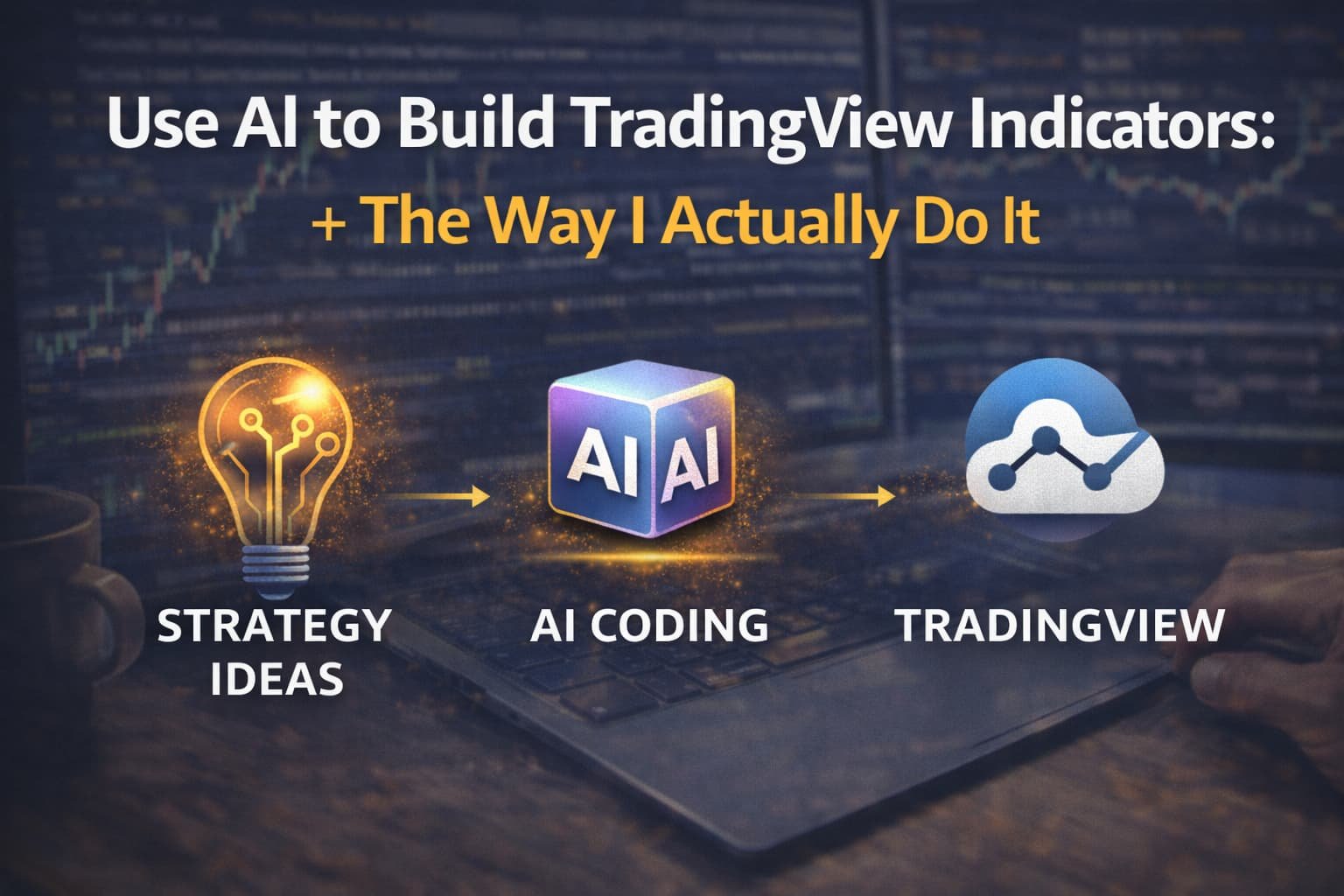
The workflow I use (quick roadmap)
Here’s the full process in one table so you can skim it in 10 seconds:
| Step | What you do | Why it matters |
|---|---|---|
| 1 | Pick keywords for your idea (ex: pivots, support/resistance) | Keeps the build focused |
| 2 | Ask AI what it “knows” about that concept | Stops you from describing it badly |
| 3 | Ask AI to convert it into a Pine Script indicator | AI writes the code, you keep control |
| 4 | Paste into TradingView → Pine Editor | Where it becomes real |
| 5 | If errors happen, paste the error back to AI | Fixes faster than guessing |
| 6 | Add settings (lookback, pivot strength, tolerance) | Makes it adjustable and usable |
| 7 | Clean the chart (styles, colors, labels) | So you actually want to use it |
The “10-second” version (step-by-step shortcode)
If you want the mini version to drop into your blog as a quick box:
Quick steps (my exact flow):
- Pick a concept (Pivot High/Low, S/R, Trend filter)
- Ask AI: “Define it using common technical rules”
- Ask AI: “Write Pine Script v6 indicator + settings”
- TradingView → Pine Editor → New Indicator → paste → Save → Add to chart
- Copy any error line back to AI: “Fix without changing logic”
- Adjust settings until it matches what you consider “valid”
Why most people fail with AI: they explain their strategy badly
Here’s the uncomfortable truth:
Most traders learned technical analysis visually.
You feel what a pivot is. You see support and resistance.
But if I ask you to describe “support resistance” in strict rules, most people give a fuzzy paragraph.
That’s like trying to describe the taste of a meal to someone who has never eaten. Your words won’t match the reality.
And when you give AI a vague description, you accidentally do something dumb:
You cut the AI off from better definitions and force it to rely on your incomplete one.
So instead of me teaching the AI my half-baked version, I do this:
- I ask AI for a clean definition first.
- Then I ask it to code that definition.
- Then I tweak settings until it matches my taste.
This is faster and gives better results.
The tool I use (and why “free” matters)
I’ve tested a bunch of tools, but if you want something powerful without paying a subscription, Google Gemini is a solid option.
In most regions you can access it using your Google account, but in some places it may require a VPN (classic modern internet nonsense).
Also, free versions usually limit how many coding requests you can make per day. That means one thing:
Don’t drip-feed the requests.
Write one clean request that includes everything.
My actual method (with a real example)
Let’s say your idea is simple:
- Identify pivot highs/lows
- Use those pivots to draw support/resistance
- Make it adjustable: pivot strength, lookback range, tolerance
Instead of telling AI “draw support and resistance,” I do it in two passes.
Pass 1: Ask AI for a definition (not code)
I ask something like:
- “How do traders commonly define pivot highs and pivot lows?”
- “How many candles left/right are typically used for a valid pivot?”
AI will usually answer with a clear rule like:
A pivot high is a candle whose high is higher than N candles left and N candles right.
Pivot low is the opposite.
Now we’re talking in rules, not vibes.
Pass 2: Ask AI to code it as an indicator (Pine Script v6)
This is the kind of prompt that actually works:
Prompt template (copy/paste):
Write a TradingView Indicator in Pine Script v6.
Goal:
- Detect Pivot Highs and Pivot Lows.
- User can set pivot strength (left/right bars).
- Plot pivot labels on chart (optional toggle).
- Store pivots and draw Support/Resistance lines based on pivot clustering.
Support/Resistance rules:
- Work only within the last X candles (user input).
- A level is valid if at least Y pivots touch it (user input).
- Use a tolerance (percent or ATR-based) to group pivots into the same level (user input).
- Draw levels as lines (or zones if easier), extend to the right.
- Add settings for line color/thickness.
Important:
- Do NOT generate signals or trades.
- Do NOT change logic.
- Output only Pine Script v6 code.
That last part matters: indicator only.
No “buy here” nonsense. Just structure and levels.
Putting it into TradingView (the part everyone overcomplicates)
Once AI gives you code:
- Open TradingView chart
- Bottom panel → Pine Editor
- Create New → Indicator
- Paste code
- Save
- Add to chart
If you see errors (you will, sometimes), don’t panic.
Copy the error message (and the line number), paste it back into AI and say:
“Fix this error in Pine Script v6 without changing the logic.”
That single sentence saves you from the AI “improving” your system into something you didn’t ask for.
(If you want TradingView’s official editor basics as a reference, you can point people here.)<a href="https://www.tradingview.com/support/" rel="nofollow">TradingView Support</a>
The settings that actually make this useful
A good AI-built indicator is not “smart.”
It’s adjustable.
These are the settings I always ask for:
- Pivot strength: how strict the pivot is
- Lookback window: only analyze last 200–1000 candles
- Minimum touches: 2+ pivots to validate a level
- Tolerance: how close pivots must be to count as “same level”
- Label toggles: because charts can become unreadable fast
- Style controls: colors, thickness, show/hide zones
Once those are in, the indicator becomes something you can actually use on different markets and timeframes without rewriting code every time.
What this workflow is really good for (and what it’s not)
It’s good for:
- Turning fuzzy ideas into clear structure
- Getting a clean visual tool for pivots/levels/zones
- Cutting down the “maybe it works” phase
- Iterating fast without paying someone to code every tweak
It’s not good for:
- Magical entries
- Predicting the next pump
- Replacing risk management
- Turning beginners into profitable traders overnight
If you’re looking for a robot that prints money, you’re in the wrong business.
Final note
If you want to use AI in trading without becoming dependent on it, this is the best lane:
Use AI to build tools.
Use tools to remove guesswork.
Use your brain to decide when (or if) you trade.
That’s the whole game.